My family listens to audiobooks, lecture courses, old radio shows and podcasts from one Audiobookshelf server on the home network. Each person has an account and a phone app. The kids see a filtered catalog and can listen and download. Nothing is exposed to the internet: the server answers on the home LAN and over a WireGuard tunnel, and that is all.
The server runs Audiobookshelf 2.37.1 with five libraries:
- Audiobooks: about 200 items
- Kids: 24 items
- Lectures: 10 courses, about 220 hours
- Old Time Radio: 80 items across 10 shows
- Podcasts: 28 shows, about 2,750 episodes, new episodes fetched every 6 hours
Everything in it is free, public domain, or mine: LibriVox recordings, Open Yale Courses and MIT OpenCourseWare audio (CC BY-NC-SA), the Old Time Radio Researchers sets on archive.org, and public podcast RSS feeds. The point is one shared library for the whole family, no subscriptions, and no account with a third party.
This is the setup, in the order I would do it again.
What you need
- A small always-on Docker host. Mine is a fanless mini PC. Audiobookshelf's config and metadata live on its disk.
- A NAS that can export NFS. The library files stay there.
- A small VPS, only if your home connection is behind CGNAT like mine and you want access from outside the house. It acts as the WireGuard hub.
- Docker Compose, Caddy (for an HTTPS name), WireGuard, qrencode, and ffmpeg.
- An iPhone app. I use Absorb (free, open source). The official Audiobookshelf iOS app is TestFlight-only and is not on the App Store. Other options: ShelfPlayer ($5.99), AudioBooth (free), Still, and Prologue (Audiobookshelf support since v4).
Step 1: Run the container with a read-only NFS library
On the NAS, create one NFS export for the library share with a single rule: the Docker host's IP only, read-only, map all users to admin. The server never needs to write to the books, so read-only removes a whole class of mistakes.
On the Docker host, the compose service mounts that export as a named NFS volume with :ro, keeps config and metadata on local disk, and gives podcasts a writable local folder (Audiobookshelf downloads episodes itself, so that library cannot live on the read-only share).
services:
  audiobookshelf:
    image: ghcr.io/advplyr/audiobookshelf:2.37.1
    container_name: audiobookshelf
    restart: unless-stopped
    ports:
      - "13378:80"
    environment:
      - ACCESS_TOKEN_EXPIRY=2592000
    volumes:
      - /srv/audiobookshelf/config:/config
      - /srv/audiobookshelf/metadata:/metadata
      - /srv/audiobookshelf/podcasts:/podcasts
      - audiobooks:/audiobooks:ro

volumes:
  audiobooks:
    driver: local
    driver_opts:
      type: nfs
      o: addr=192.168.1.10,nfsvers=4.1,ro
      device: ":/volume1/Audiobooks"
ACCESS_TOKEN_EXPIRY=2592000 sets the access token lifetime to 30 days, the same as the refresh token. Newer Audiobookshelf releases issue 1-hour access tokens plus rotating refresh tokens, and Absorb was not keeping the rotated refresh token, so logins kept failing with "token expired". A 30-day token is a reasonable trade on a server that is only reachable on the LAN and the VPN. After setting it, each phone signs out and back in once.
Start the container, open the web UI on port 13378, and create the admin account.
Step 2: Lay out the files on the NAS
Audiobookshelf reads a lot from folder names, so the layout is worth getting right before the first scan. The main library uses Author/Title or Author/Series/N - Title:
Audiobooks/
  Alastair Reynolds/
    Revelation Space/
      Revelation Space.m4b
      cover.jpg
      desc.txt
      reader.txt
  Ursula K. Le Guin/
    Earthsea/
      1 - A Wizard of Earthsea/
      2 - The Tombs of Atuan/
  Kids/
    .ignore
    ...
  Lectures/
    .ignore
    ...
  Old Time Radio/
    .ignore
    ...
Three scanner rules apply to this layout:
- A subfolder inside a book folder is merged into the book only if it is named
CD N,Disc NorDisk N. Any other subfolder becomes its own item. Rename bundledPart 01of16style folders toCD01,CD02and so on. - A folder named
YYYY - Titleis parsed as a year, so2001 - A Space Odysseybecomes a book titled "A Space Odyssey". Use2001 A Space Odyssey. - Files must be world-readable, because every user maps to admin on the export and a file with mode 0700 is unreadable through NFS. Run
chmod -R a+rX /volume1/Audiobooksafter copying, and keep new files world-readable.
For LibriVox titles I pick a solo-reader recording where one exists and a single M4B with chapters. Each book folder gets cover.jpg, desc.txt (the description) and reader.txt (the narrator). Audiobookshelf reads all three.
To get five libraries out of one NFS export, put Kids/, Lectures/ and Old Time Radio/ inside the share and drop an empty .ignore file in each. The main Audiobooks library skips any folder that contains .ignore. A library whose root is that folder still scans it, because Audiobookshelf only honors .ignore below a library root.
Step 3: Create the libraries and set the metadata order
In Settings, create each library and point it at its folder: /audiobooks for the main library, /audiobooks/Kids, /audiobooks/Lectures, /audiobooks/Old Time Radio, and /podcasts for the podcast library (type Podcast).
Before scanning, open each library's settings and move Folder structure to the last position in the metadata precedence list. Audiobookshelf applies metadata sources in order and the later source wins. By default embedded audio tags come after folder names, so a rip tagged by whoever bundled it overrides the author and title you wrote into the folder. In my case 107 of 145 items came up with author "Top 100 Sci-Fi Books" and titles like "73 - Revelation Space - Alastair Reynolds - 2000". With Folder structure last, a forced rescan corrected all of them. The forced rescan matters: a normal scan keeps the values Audiobookshelf has already stored in its own metadata files.
Covers: most of my books had embedded art. For the rest I used the Match function against Audible, Google Books and Open Library, and accepted a match only when both title and author agreed. Author photos come from the Audnexus provider through the "match author" action on the author page.
Step 4: Lectures and old time radio
The Lectures library holds 10 courses (about 220 hours) from Open Yale Courses and MIT OpenCourseWare audio, one item per course.
The Old Time Radio library needed a structure decision. The archive.org sets have hundreds of episodes per show. I make one item per show per broadcast year, with the episodes as that item's tracks, and set each show as a Series with the year as the sequence number. The app's Series view then lists 10 shows instead of 80 items, and tapping a show gives one entry per year.
A few archive.org files with an .mp3 extension were actually WAV data with an ID3 tag on the front; ffprobe reports an invalid RIFF header. Strip the tag and re-encode with ffmpeg, then rescan.
Step 5: Podcasts
Add each show by RSS URL in the Podcasts library and turn on automatic downloads. Mine check every 6 hours. For shows with huge back catalogs, set maxEpisodesToKeep so only the latest N episodes stay on disk.
Audiobookshelf downloads queued episodes one at a time, and on my connection that ran at about 30 Mbit/s. I backfilled about 2,650 episodes outside the app instead:
- Clear the Audiobookshelf download queue.
- Download the episodes in parallel, 8 at a time, straight into each show's folder under
/podcasts. That ran at about 157 Mbit/s. - Rescan the Podcasts library so the files appear as episodes.
- Use the library's Match episodes action to pull titles, dates and descriptions from each feed.
- Remove duplicate episodes by enclosure URL.
After that the 6-hour schedule keeps everything current on its own.
Step 6: Accounts for the family
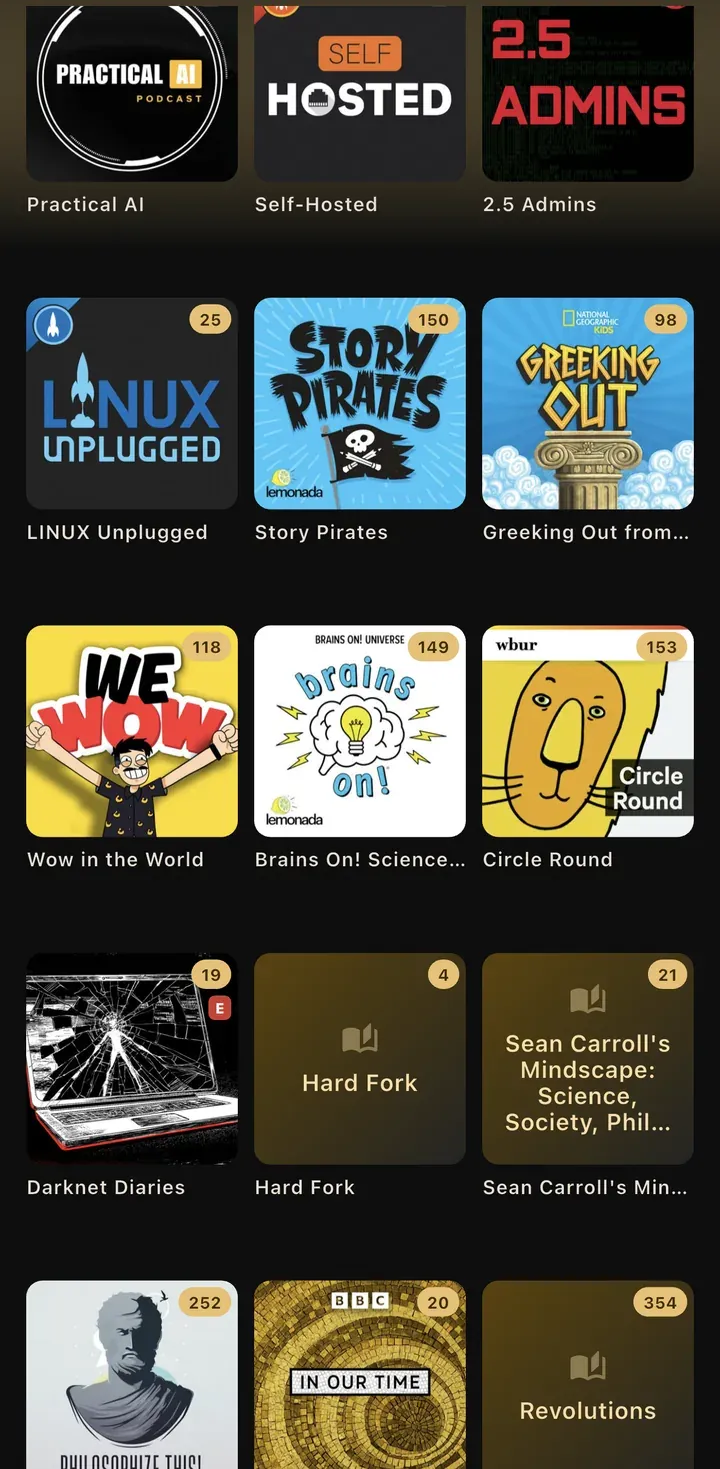
Create one user per person. My wife and I have full accounts. The kids' accounts can listen and download, and nothing else.
The explicit filter hides items from accounts that have "explicit content" disabled, but only for items actually marked explicit. I marked 10 adult books by hand. One podcast is marked too. Podcast feeds report the explicit flag as a string such as "no", and a non-empty string reads as true, so set the flag on each podcast as a real boolean rather than trusting the imported value.
Step 7: An HTTPS name and access from outside the house
The server has a proper HTTPS name even though it is private. Caddy fronts the container and holds a wildcard Let's Encrypt certificate obtained with a DNS-01 challenge. The DNS record for the name is a DNS-only wildcard that points at the server's LAN IP. The name resolves anywhere, but it only connects at home or over the VPN.
My home internet is behind CGNAT, so inbound connections are not an option. Instead, a small VPS runs a WireGuard hub, the Docker host is one peer, and each phone is a peer. The adults' peers route the home LAN. The kids' peers have AllowedIPs set to the Docker host's single IP, so their tunnel only carries traffic for the server. That is a routing setting on the phone, not a firewall; if you need enforcement, add it on the hub.
Generate each phone's config, render it as a QR code with qrencode -t ansiutf8 < phone.conf, and scan it in the WireGuard iOS app. In the app, set On-Demand to connect on cellular and on any Wi-Fi except the home network, so the tunnel comes up on its own whenever the phone leaves the house.
Step 8: Install the phone app
Install Absorb from the App Store, add the server by its HTTPS name, and sign in with the account for that phone.
Two settings to check:
- If Absorb connects on cellular but not on home Wi-Fi, grant it Local Network permission (Settings > Apps > Absorb > Local Network). On cellular the traffic goes through the WireGuard tunnel, which iOS does not treat as local network, so the problem only shows at home.
- If you set
ACCESS_TOKEN_EXPIRYafter phones were already signed in, sign out and back in once on each phone.
Using it
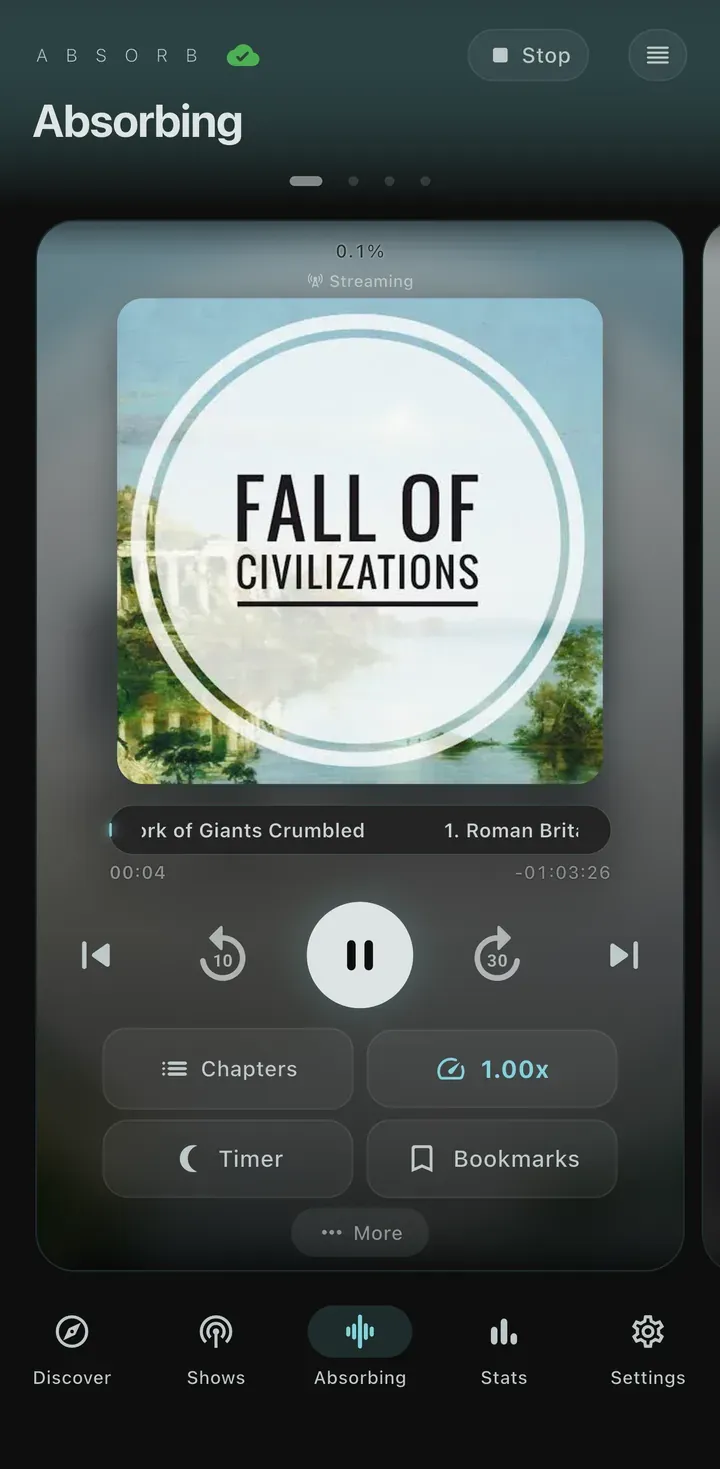
The server needs no routine attention. Books and lectures download to the phone for the car and for places without signal. The Series view in Old Time Radio lists the 10 shows, and each show opens to one entry per broadcast year. Podcast episodes appear on the 6-hour schedule without anyone touching the server. The kids' accounts hide the 10 books and the one podcast marked explicit.
Backups are small because the library itself is on the NAS. The Docker host's config and metadata folders go into the nightly restic run, with the cache, logs and streams directories excluded. The podcasts folder is not backed up; every episode can be downloaded again from its feed.
Comments
// Comments are reviewed before appearing. No spam. No noise.